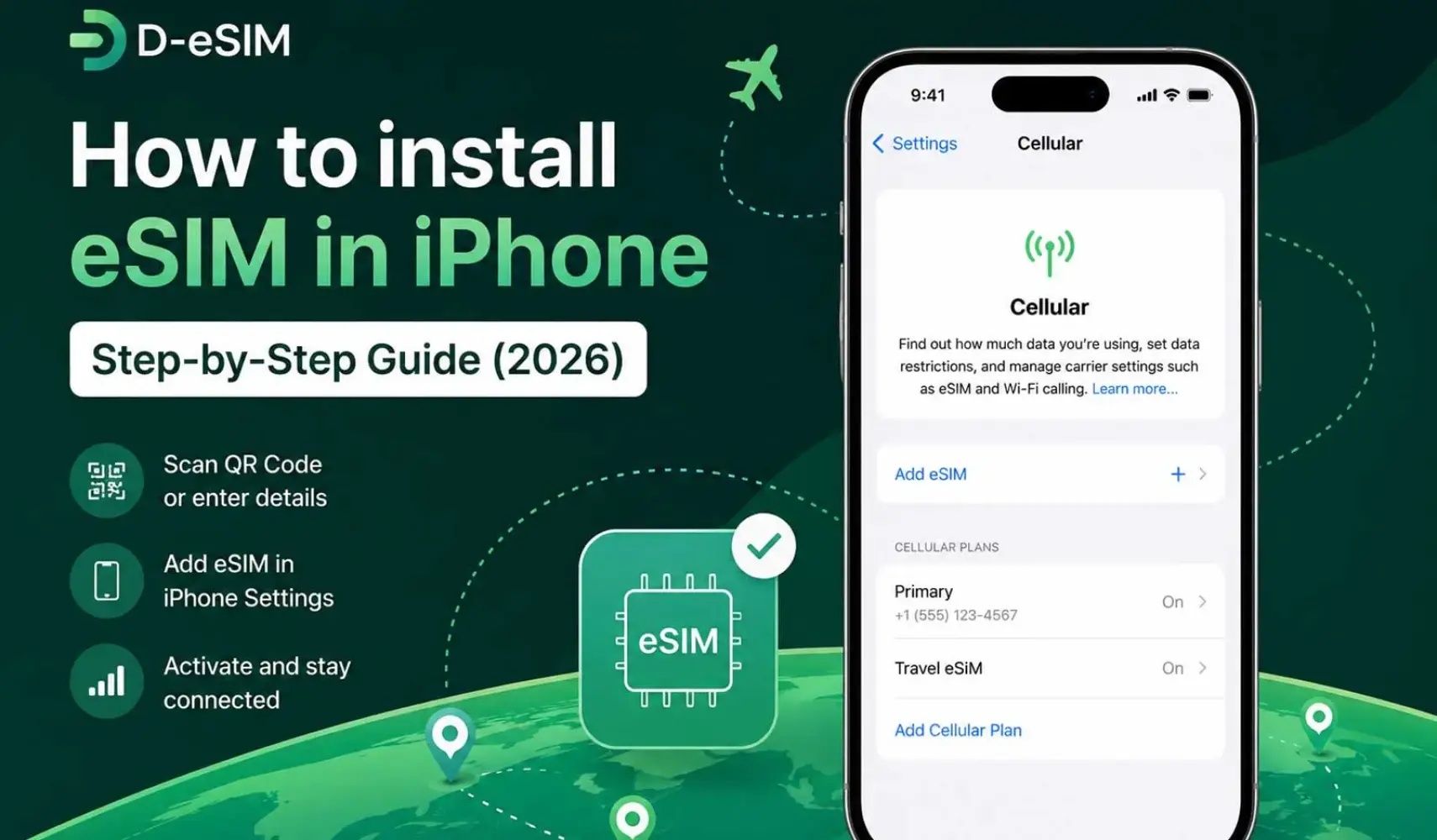
If you're looking for the easiest way to install eSIM on iPhone, the process usually takes only a few minutes. Most questions come from knowing where the settings are rather than the installation itself.
Some people need to set up eSIM in iPhone before an international trip, while others simply want to add a second mobile line without replacing their existing SIM card.
The process itself isn't complicated, but the available options can be confusing if you've never used an eSIM before. The installation is rarely the difficult part. Most of the time is spent figuring out where Apple has placed the eSIM options in iPhone settings.
What Is an eSIM?
An eSIM is a digital alternative to the traditional physical SIM card. Instead of inserting a small plastic card into your iPhone, your mobile plan can be activated directly on the device. This makes it easier to add or switch cellular plans without having to remove, replace, or carry physical SIM cards. If you're new to the technology, learning more about what is an eSIM can help explain how it works and how it differs from a traditional SIM.
For someone who uses a single number every day, this difference may not seem significant. But for travelers planning to use an eSIM in Europe, business users, or anyone managing two mobile lines, it can simplify several steps that would otherwise involve swapping SIM cards or dealing with multiple physical cards.
An eSIM can be useful in a variety of situations. Some people install one before traveling abroad, others use it to keep work and personal numbers separate, and some simply prefer the convenience of having two mobile lines available on the same iPhone.
Which iPhones Support eSIM?
Apple introduced eSIM support with the iPhone XS, iPhone XS Max, and iPhone XR. Most newer iPhone generations also support eSIM, although availability can vary depending on the model and the country or region where the device was purchased.
eSIM-compatible iPhone models include:
- iPhone 17 series: iPhone 17, iPhone 17 Pro, iPhone 17 Pro Max, iPhone 17e, and iPhone Air
- iPhone 16 series: iPhone 16, iPhone 16 Plus, iPhone 16 Pro, iPhone 16 Pro Max, and iPhone 16e
- iPhone 15 series: iPhone 15, iPhone 15 Plus, iPhone 15 Pro, and iPhone 15 Pro Max
- iPhone 14 series: iPhone 14, iPhone 14 Plus, iPhone 14 Pro, and iPhone 14 Pro Max
- iPhone 13 series: iPhone 13, iPhone 13 mini, iPhone 13 Pro, and iPhone 13 Pro Max
- iPhone 12 series: iPhone 12, iPhone 12 mini, iPhone 12 Pro, and iPhone 12 Pro Max
- iPhone 11 series: iPhone 11, iPhone 11 Pro, and iPhone 11 Pro Max
- iPhone SE: iPhone SE (2nd generation) and iPhone SE (3rd generation)
- Earlier models: iPhone XS, iPhone XS Max, and iPhone XR
Apple's current documentation confirms eSIM support across these generations, subject to regional and model differences.
Important: eSIM availability can vary by country or region of purchase. In particular, iPhones sold in mainland China have different SIM configurations, so travelers should verify their exact model before purchasing an eSIM.
Rather than relying on the model name alone, you can also check eSIM support directly in your iPhone settings. The next section shows you exactly where to look.
How to Check if Your iPhone Supports eSIM
Not sure whether your iPhone has eSIM? You don't need to search for the model first. Open Settings and tap Cellular (or Mobile Service in some regions). If the menu includes an option called Add eSIM or Add Cellular Plan, your iPhone supports eSIM.
If that option isn't there, open Settings and go to General, then About, and check your iPhone model. Some models sold in specific countries have different eSIM capabilities, so the model number is worth checking before purchasing a plan.
How to Install an eSIM on iPhone
The first step isn't opening the Settings app. It's checking what your eSIM provider has actually sent you. Some providers send a QR code. Others send activation details. A few complete the setup through their own iPhone app. The installation method depends on that information, not on the iPhone itself.
Before you start, make sure your iPhone is connected to Wi-Fi or another internet connection, supports eSIM, and is carrier-unlocked. Keep your QR code or activation details ready.
If You Received a QR Code
Open Settings, tap Cellular, then Add eSIM, and choose the option to scan a QR code. After the code is accepted, iPhone will display the mobile plan before asking whether you'd like to add it.
If You Received Activation Details Instead
Some providers skip QR codes completely. In that case, select the manual setup option and enter the information exactly as it appears in the activation email.
If Your Carrier Uses an App
Some mobile operators handle installation within their own apps. When that's available, follow the carrier's instructions until the new line appears in your iPhone settings.
How to Activate Your eSIM for Travel
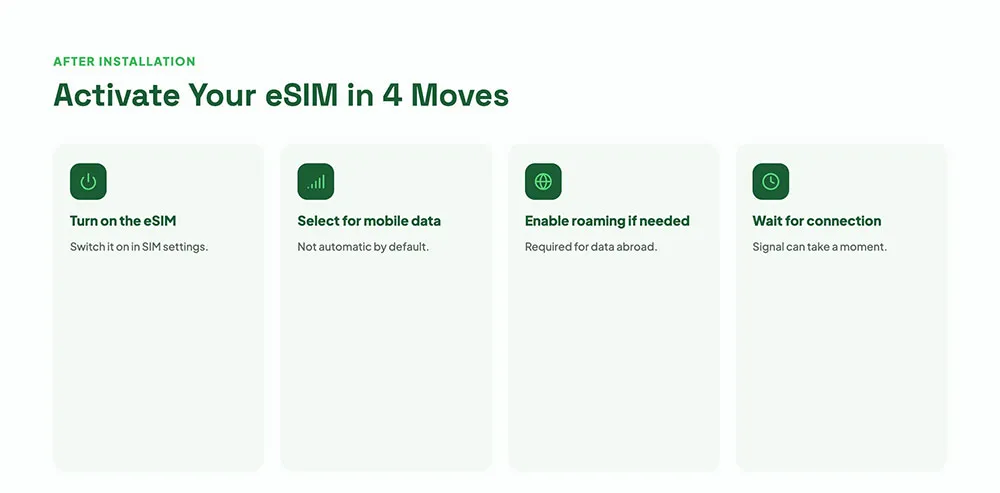
One question comes up surprisingly often: should you activate the eSIM before the flight or wait until you arrive? There isn't a single answer because providers don't all work the same way.
Installation and activation aren't always the same event. Depending on the provider, your plan may not begin until the iPhone connects to a supported network after you arrive. Knowing that in advance can help you avoid activating an eSIM for international travel earlier than intended.
For that reason, it's worth checking the activation policy before doing anything else. A two-minute check before departure can prevent the loss of a day of service.
One Thing to Check Before You Fly
One detail is worth checking before leaving for the airport: when your eSIM actually becomes active. Not every provider follows the same activation policy. Some plans begin as soon as the eSIM is activated, while others don't start until the phone connects to a supported network in the destination country.
Tip: Spending a minute to read the provider's activation instructions can help you avoid using any part of your plan before the trip has even started.
Your First Step After Landing
After arriving, give the phone a moment to connect to a local network before assuming something is wrong. In many cases, the connection appears automatically after a short wait. If the connection isn't available right away, give it a little time. Some networks take longer than others to recognize a newly activated eSIM.
How to Set Your eSIM for Mobile Data
A travel eSIM can be installed correctly and still not be the line your iPhone uses for mobile data. Checking this setting before your trip can help prevent connection issues after arrival.
Go to Settings, tap Cellular (or Mobile Data), then Cellular Data (or Mobile Data), and select the eSIM you want to use for internet access. You can change this setting later if you want to switch your mobile data connection to another line.
If you're keeping your regular SIM for calls and messages while using a travel eSIM for data, make sure the travel eSIM is selected for mobile data while your preferred line remains set for calls and messages.
Common eSIM Installation Problems and Fixes for iPhone
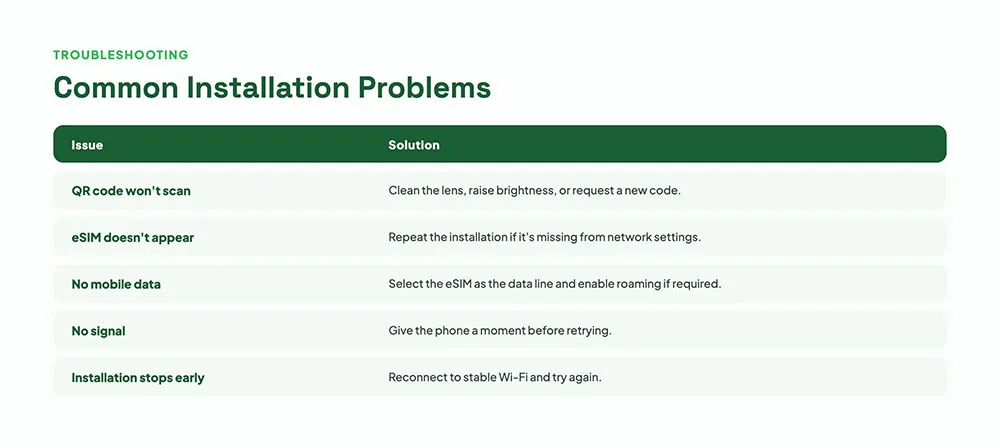
Not every installation goes the same way. When something doesn't work as expected, the issue is often linked to one of the situations below.
| What You Notice | What Usually Causes It | What to Try |
|---|---|---|
| The QR code won't scan | The code has already been used, or the camera can't read it clearly | Increase screen brightness, clean the camera lens, or ask the provider whether a new QR code is required. |
| "Unable to Add eSIM" appears | The iPhone may be locked to a carrier, or the activation details may no longer be valid | Check whether the device is carrier-unlocked and confirm the activation information with the provider. |
| The eSIM is installed but there's still no signal | A new eSIM doesn't always connect to the network immediately after installation | In many cases, the signal shows up on its own after a short time. If nothing changes, restart the iPhone before trying anything else. |
| Mobile data isn't working | Another line may still be selected for data | Review which line is assigned to mobile data in the iPhone settings. |
| Activation stops halfway | An unstable internet connection interrupted the process | Connect to a reliable Wi-Fi network and try again. |
Final Thoughts
Installing an eSIM becomes much more straightforward once you know where the settings are and which activation method your provider uses. Whether you need to install eSIM on iPhone before a trip, set up eSIM in iPhone for a second mobile line, or add eSIM in iPhone for everyday use, the steps are largely the same.
The only real differences usually come from the activation details supplied by your carrier. Keeping the activation email, checking when the plan becomes active, and confirming which line is selected for mobile data can prevent unnecessary interruptions later.
With those details in place, your iPhone is ready to connect without replacing a physical SIM card, making plan changes much simpler.
Frequently Asked Questions
The option is available only if your mobile carrier supports SIM conversion. When it isn't offered, the carrier needs to issue a new eSIM instead.
Comments (1)
Leave a comment
Smith Norman
02 Jul 2026Thank you so much it was very useful