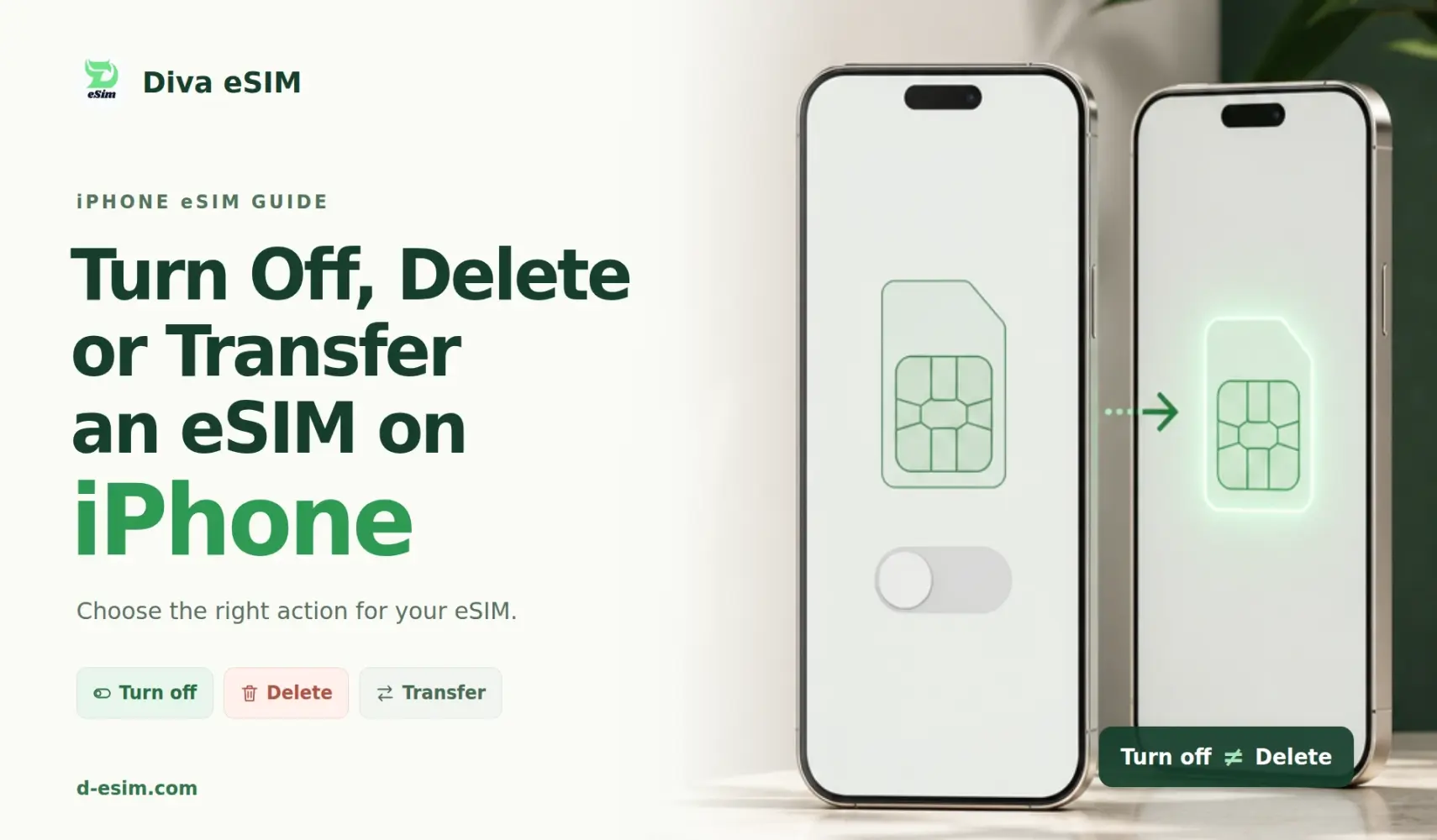
To turn off an eSIM on iPhone without deleting it, switch that line off in your cellular settings. The profile stays installed on your device, and one tap turns it back on.
iPhone (iOS): Open Settings, tap Cellular (or Mobile Service), tap the eSIM, and turn off Turn On This Line.
Turning an eSIM off stops calls, texts, and mobile data on that line only. It does not delete the profile, cancel the plan, or pause the plan's validity period. Deleting an eSIM is a separate, permanent action: most travel eSIMs cannot be reinstalled from the same QR code.
Menu names in this guide match Apple's official support documentation as of September 2026.
Turn Off vs. Delete eSIM on iPhone: The Critical Difference
Turning off an eSIM disables the line but keeps its profile stored on your iPhone. Deleting an eSIM erases the profile completely, and for most travel eSIMs, that cannot be undone.
Turning off (disabling): Toggling off Turn On This Line disconnects your iPhone from that carrier's network. No calls, SMS, or cellular data will go through that line until you switch it back on. Nothing is removed from your device.
Deleting (removing): Tapping Delete eSIM (or Remove Cellular Plan) permanently erases the profile and its carrier credentials from your iPhone. Because most travel eSIM QR codes are single-use, deleting it means you cannot scan the same code again and will need to contact support or purchase a new plan.
Key differences on iPhone:
| What changes | Turning off | Deleting |
|---|---|---|
| Profile on device | Stays stored in your iPhone settings | Erased permanently from the device |
| Network connection | Disconnected until you toggle it back on | Removed permanently |
| Calls, SMS, and cellular data | Paused on this line | Ended permanently |
| Reactivation | One tap on Turn On This Line in Settings | Requires a new QR code or replacement profile from the provider |
| Plan validity countdown | Keeps running in real time | Keeps running, and you immediately lose access to remaining data |
| Billing or recurring plan | Unchanged | Unchanged; auto-renewal must be cancelled with the carrier separately |
| Best used when | Returning home, preserving battery, or troubleshooting signal issues | Data plan is completely used up, moving to a new phone, or resetting the device |
How to Turn Off an eSIM on iPhone (iOS)
On an iPhone, the switch is called Turn On This Line. Each plan has its own switch under Settings and Cellular, so you can disable one line and keep the other active.
- Open Settings.
- Tap Cellular. Depending on your region and iOS version, this is labelled Mobile Service or Mobile Data.
- Under SIMs, tap the eSIM you want to disable. It shows the label you gave it, such as Travel or Secondary.
- Turn off Turn On This Line.
- If that eSIM was your data line, go back, tap Cellular Data and select the line you want to use instead.
To turn the eSIM back on, flip the same switch. Reconnecting to the network can take a minute or two.
iOS 26 and later may do this for you. According to Apple , an iPhone running iOS 26 or later automatically turns off a travel eSIM and turns the home SIM back on when you return home, depending on your country or region. If no notification appears after you land, check that Turn On This Line is enabled for your primary line and switch off any travel lines you no longer use.
Pro tip for iPhone users: Check Allow Cellular Data Switching under Settings, Cellular, Cellular Data. While two lines are on, this setting lets the iPhone move data to the other line when the signal drops. Abroad, that can put your home SIM on roaming data without warning. Turn it off to keep data on one line.
Note for iPad (Wi-Fi + Cellular) users: The steps on iPadOS are virtually identical: go to Settings, Cellular Data, tap your eSIM plan, and toggle off the line. Keep in mind that eSIMs on iPad are strictly for mobile data (no cellular phone calls or SMS), and you can switch between active data profiles at any time without deleting them.
When Should You Turn Off Your eSIM on iPhone? (Best Practices)
Turn your travel eSIM off in Cellular Settings whenever you want the line to stop working temporarily, but plan to use it again later. These are the six most common cases:
- You are back home: Switch off the travel eSIM in your Cellular settings so your iPhone stops trying to connect to that network. Keep the profile installed if your provider allows top-ups for future trips.
- You want to avoid roaming charges: If you want to ensure your home SIM never incurs roaming fees, turn off your home SIM and use the travel eSIM exclusively for data. If you need to keep your home line active for SMS and calls, keep it on but toggle off Allow Cellular Data Switching in your Cellular settings.
- Coverage is weak and battery matters: An iPhone with multiple active eSIMs constantly scans for signal, which drains your battery. Disabling the line you aren't using stops that battery-draining search.
- You carry several eSIMs: You can store many eSIM profiles on your iPhone, but only a few can be active simultaneously. Turning off unused lines prevents the iPhone from accidentally routing calls or data through the wrong carrier.
- Troubleshooting connectivity: If a line shows "No Service" or data stops working, toggle the Turn On This Line switch off, wait 20 seconds, and turn it back on. This forces the iPhone to re-register with the network. Apple advises against deleting an eSIM to troubleshoot unless your carrier specifically instructs you to.
- You want data locked to one line: When you have only one line active, the iPhone cannot automatically switch to a different SIM for mobile data.
Important note on validity and expiration: Turning off an eSIM does not pause the plan's validity period. If you buy a 7-day travel plan and turn the eSIM off on day 2, the remaining 5 days keep counting down and the plan expires on schedule. Turn a line off to control network connectivity, not to "save" days for a later trip.
How to Permanently Delete or Remove an eSIM (When Finished)
Delete an eSIM only in three situations: the plan has expired or run out and you will not top it up, you have moved the line to another phone, or you are selling or giving away the device.
Warning before you delete: Deleting is permanent. Most travel eSIM QR codes install once, so the same code will not restore the profile. Deleting also does not cancel a plan or subscription; to stop billing, contact the carrier. If you only want to pause service, turn the eSIM off instead.
How to Remove an eSIM on iPhone (iOS)
- Open Settings.
- Tap Cellular (or Mobile Service).
- Under SIMs, tap the eSIM you want to delete.
- Scroll down and tap Delete eSIM. Apple's support pages also name this button Delete Plan on iPhones with several plans, and older iOS versions show Remove Cellular Plan.
- Confirm when prompted.
The rule is simple: turn an eSIM off when you want to pause a line, and delete it only when the plan is finished and you will not need the profile again.
Planning your next trip? Explore affordable, high-speed travel data plans at Diva eSIM and skip the roaming fees.
Related guides: Switching between platforms? Check out our complete walkthrough on how to turn off an eSIM on Android without deleting your profile.
Frequently Asked Questions
Yes. Turning off an eSIM is temporary and fully reversible. The profile stays on your iPhone, and switching Turn On This Line back on in Settings and Cellular restores service, usually within a minute or two.

Comments (0)
Leave a comment