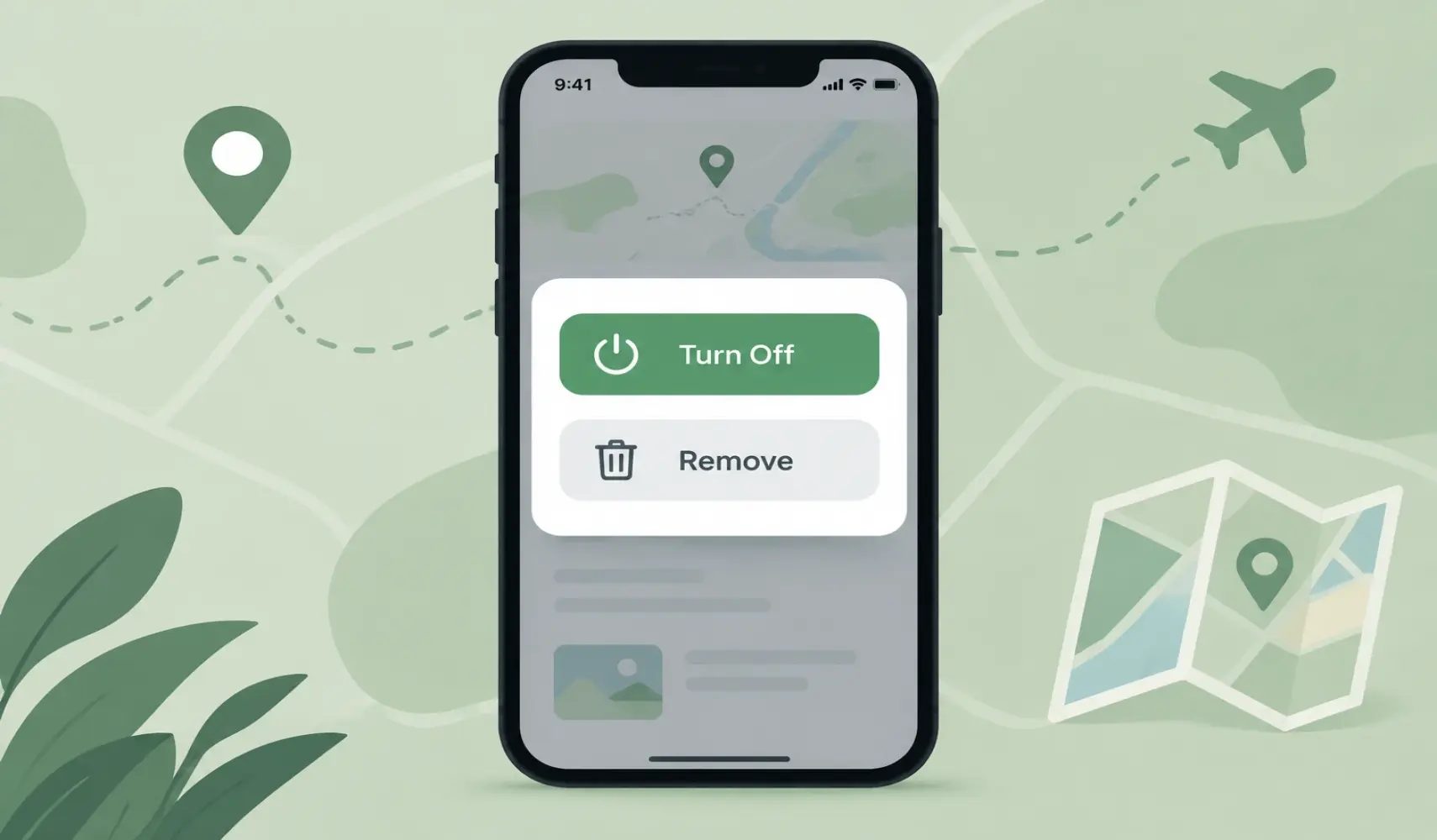
To turn off an eSIM on Android without deleting it, switch that line off in your phone's SIM settings. The profile stays installed, and one tap turns it back on.
- Samsung Galaxy: Settings, Connections, SIM manager, then switch the eSIM off.
- Google Pixel: Settings, Network & internet, SIMs, tap the eSIM, then turn off Use this SIM.
- Xiaomi, Redmi & POCO: Settings, Mobile networks, Manage eSIM, then disable the eSIM.
Turning an eSIM off stops calls, texts, and mobile data on that line only. It does not delete the profile, cancel the plan, or pause the plan's validity period. Deleting an eSIM is a separate, permanent action that erases the profile completely.
Turn Off vs. Delete eSIM on Android: The Critical Difference
Turning off an eSIM disables the line but keeps its profile safely stored in your phone's SIM manager. Deleting an eSIM erases the profile, and for most travel eSIMs, that action is irreversible.
Turning off (disabling): Switching off the eSIM toggle (or disabling Use this SIM) disconnects your Android phone from that carrier's network. No mobile data, calls, or texts go through until you turn it back on. Nothing is removed.
Deleting (erasing): Tapping Remove (Samsung), Erase eSIM (Pixel) or Delete mobile plan (Xiaomi) erases the profile and digital credentials from your phone. Most travel eSIM QR codes can only be scanned once; erasing the profile means you cannot reinstall it and must buy a new plan or contact customer support.
Key differences on Android:
| What changes | Turning off | Deleting |
|---|---|---|
| Profile on device | Stays saved in your SIM manager | Erased from phone storage |
| Network connection | Disconnected until you switch the toggle back on | Removed permanently |
| Calls, SMS, and mobile data | Paused on this specific line | Terminated permanently |
| Reactivation | One tap in SIM settings or SIM manager | Requires a new QR code or new carrier setup |
| Plan validity countdown | Keeps running without pausing | Keeps running, and you lose any remaining data balance |
| Billing or recurring plan | Unchanged | Unchanged; must be cancelled directly with your provider |
| Best used when | Returning from a trip, switching active SIMs, or fixing temporary network bugs | Your data package has expired, transferring lines, or factory resetting the phone |
How to Turn Off an eSIM on Android Devices
Every Android phone keeps the eSIM switch in its SIM settings, but the menu name changes by manufacturer. Use the steps for your brand below. If you still need to add a profile first, see our guide: Install an eSIM on Android.
1. On Samsung Galaxy Devices (One UI)
- Open Settings.
- Tap Connections.
- Tap SIM manager. Older One UI versions call it SIM card manager.
- Find the eSIM in the list and switch its toggle off.
- Confirm if a prompt appears.
- Under Preferred SIMs, check that calls, messages and mobile data point to the line you want to keep using.
2. On Google Pixel & Stock Android Devices
- Open Settings.
- Tap Network & internet.
- Tap SIMs. Google's help pages and some Android versions call this menu Mobile network.
- Tap the eSIM you want to turn off.
- Turn off Use this SIM. Some versions shorten the label to Use SIM.
- Confirm if a prompt appears.
Phones with near-stock Android, such as recent Motorola models, follow a very similar path.
3. On Xiaomi, Redmi, & Other Android Brands (HyperOS / MIUI)
- Open Settings.
- Tap Mobile networks. Older MIUI versions call it SIM cards & mobile networks.
- Tap Manage eSIM. If you do not see it, turn on Use eSIM first.
- Select the eSIM and choose Disable mobile plan. Some versions show a switch or a Deactivate button instead.
On any other Android phone, open Settings and search for "SIM" or "eSIM". The on/off switch for each line lives in that menu, separate from the delete option.
On all of these phones, turning the line off disconnects it from the network straight away and leaves the profile untouched. The same switch turns it back on.
Note for Xiaomi / POCO users: On many Xiaomi and POCO models, enabling eSIM disables the physical SIM Slot 2. If you don't see the Manage eSIM option, make sure SIM 2 is empty or that Use eSIM is toggled on in your Mobile Network settings.
How to Remove an eSIM on Samsung Galaxy (One UI)
- Open Settings and tap Connections.
- Tap SIM manager.
- Tap the eSIM you want to delete.
- Tap Remove.
- Enter your PIN, password or biometrics if asked, then tap Remove again to confirm.
How to Remove an eSIM on Google Pixel & Other Android Phones
- Open Settings.
- Tap Network & internet, then SIMs (or Mobile network).
- Tap the eSIM you want to delete.
- Tap Erase eSIM.
- Confirm when prompted.
On Xiaomi phones, the option is Delete mobile plan under Manage eSIM, and Xiaomi says to disable the eSIM before you delete it. Pixel phones also offer a Confirm SIM deletion security setting, which asks for your screen lock before an eSIM can be erased. It is a useful guard against deleting a plan by accident.
Good to know (messaging apps): Turning off a travel eSIM does not log you out of WhatsApp, Telegram, or other messaging apps. These apps link to your phone number during setup, not your physical SIM connection, and will continue working via Wi-Fi or your other active line.
When Should You Turn Off Your eSIM on Android? (Best Practices)
Turn an eSIM off in your SIM Manager or Network Settings whenever you want a line to stop working for now but might need it again. These are the six most common cases:
- You are back home: Switch off the travel eSIM in your device settings so the phone stops searching for that network. Keep the profile if your provider allows top-ups for future travel.
- You want to avoid roaming charges: To be 100% safe from roaming fees on your home SIM, disable the home SIM in your SIM settings. If you need to receive SMS (like bank verification codes) on your home SIM, keep it on, but ensure Mobile Data is explicitly set to your travel eSIM.
- Coverage is weak and battery matters: Android devices with multiple active SIMs consume more power while searching for signal. Disabling an unused line prevents the phone from wasting battery on that search.
- You carry several eSIMs: Most Android phones store multiple profiles but keep only one or two active at once. Turning off unused lines stops calls, texts, or data from routing through the wrong SIM.
- Troubleshooting connectivity: If a line shows "No Service" or data stops working, toggle the eSIM off in your SIM Manager or SIMs menu, wait 20 seconds, and turn it back on. This makes the phone re-register with the network. Avoid deleting the eSIM unless your carrier tells you to; it is rarely the correct first step for troubleshooting.
- You want data locked to one line: With only one line active in your settings, the phone cannot move mobile data to your other SIM on its own.
Important note on validity and expiration: Turning off an eSIM does not pause the plan's validity period. If you buy a 7-day travel plan and turn the eSIM off on day 2, the remaining 5 days keep counting down and the plan expires on schedule. Turn a line off to control network usage, not to "save" days for a later trip.
Warning: factory reset caution. If you ever need to perform a factory reset on your Android device, you will be prompted to either Keep or Erase downloaded eSIMs. Always choose Keep if you wish to retain your profiles. If you accidentally select Erase, your eSIM profiles will be permanently deleted from the device, and you will need to contact your provider to reissue them.
Turning off an eSIM on Android is the safest and quickest way to manage your mobile connections, preserve battery life, and eliminate accidental roaming fees without losing your installed profiles. Save the Delete or Erase option strictly for expired one-time travel plans or when switching to a new device.
Frequently Asked Questions
Yes. Disabling an eSIM is temporary and fully reversible. The digital profile stays saved in your phone's SIM manager (Settings, Connections, SIM manager on Samsung, or Settings, Network & internet, SIMs on Pixel). Flipping the toggle back on restores service within moments.
Comments (0)
Leave a comment