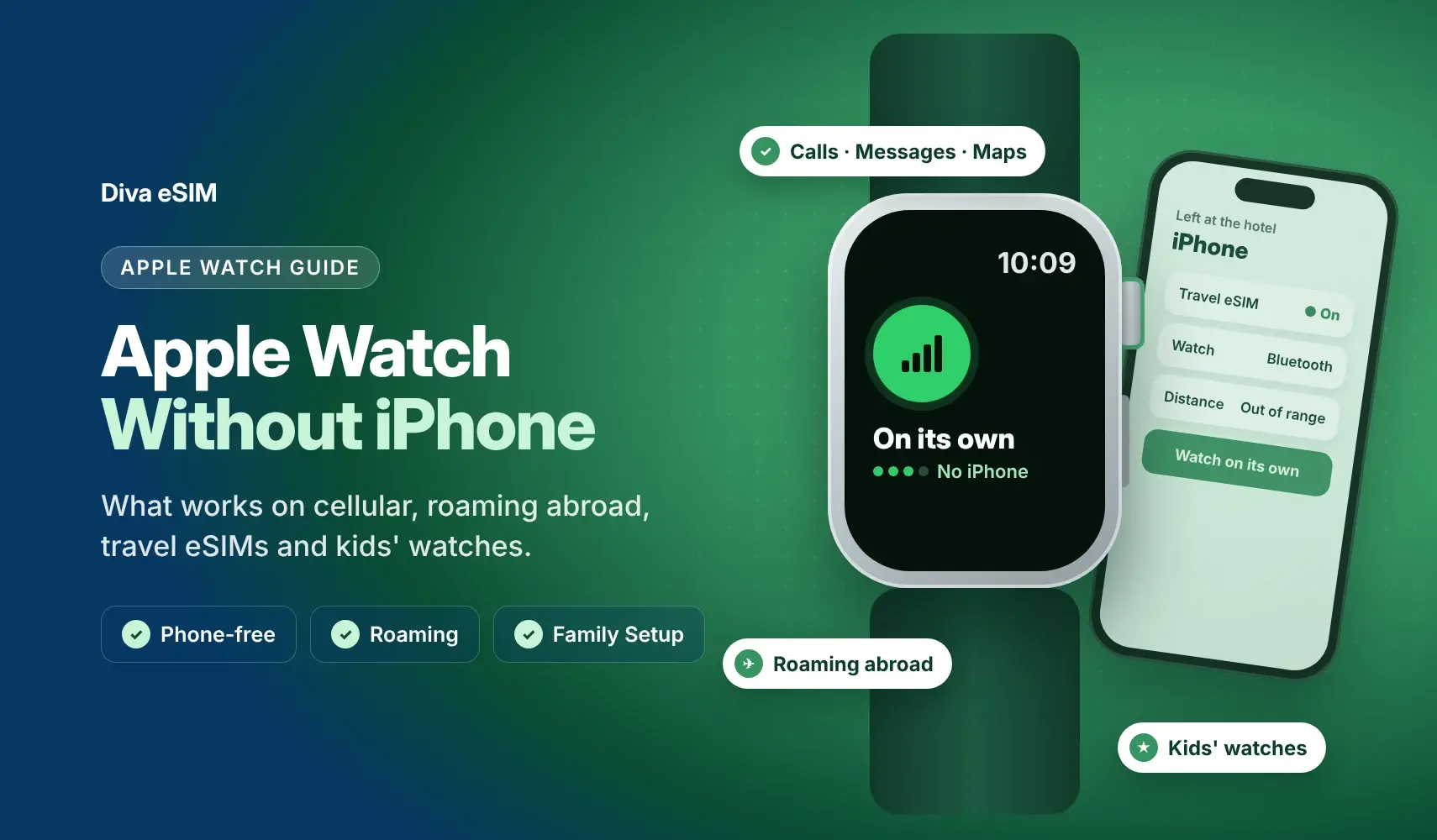
The Short Answer: Yes, With Limits
Can you use Apple Watch without an iPhone? Yes, once it's set up. A GPS + Cellular Apple Watch with an active plan can call, message, stream and navigate with your iPhone left at home, and every Apple Watch keeps working offline for workouts, health and Apple Pay. What you can't do is set up an Apple Watch without an iPhone: every watch is paired from an iPhone, and Apple Watch doesn't work with Android phones. The one exception is Apple Watch For Your Kids, where a parent sets up the watch from their own iPhone for a family member who doesn't have one.
This guide covers what works without your iPhone nearby, how to set up a cellular Apple Watch for your kids, why a travel eSIM can't be installed on the watch, and how roaming works when you travel. For models, carriers and the cost of a watch plan, see our guide to Apple Watch eSIM, cellular plans and carriers.
Apple Watch Family Setup: Cellular for Kids and Family Members
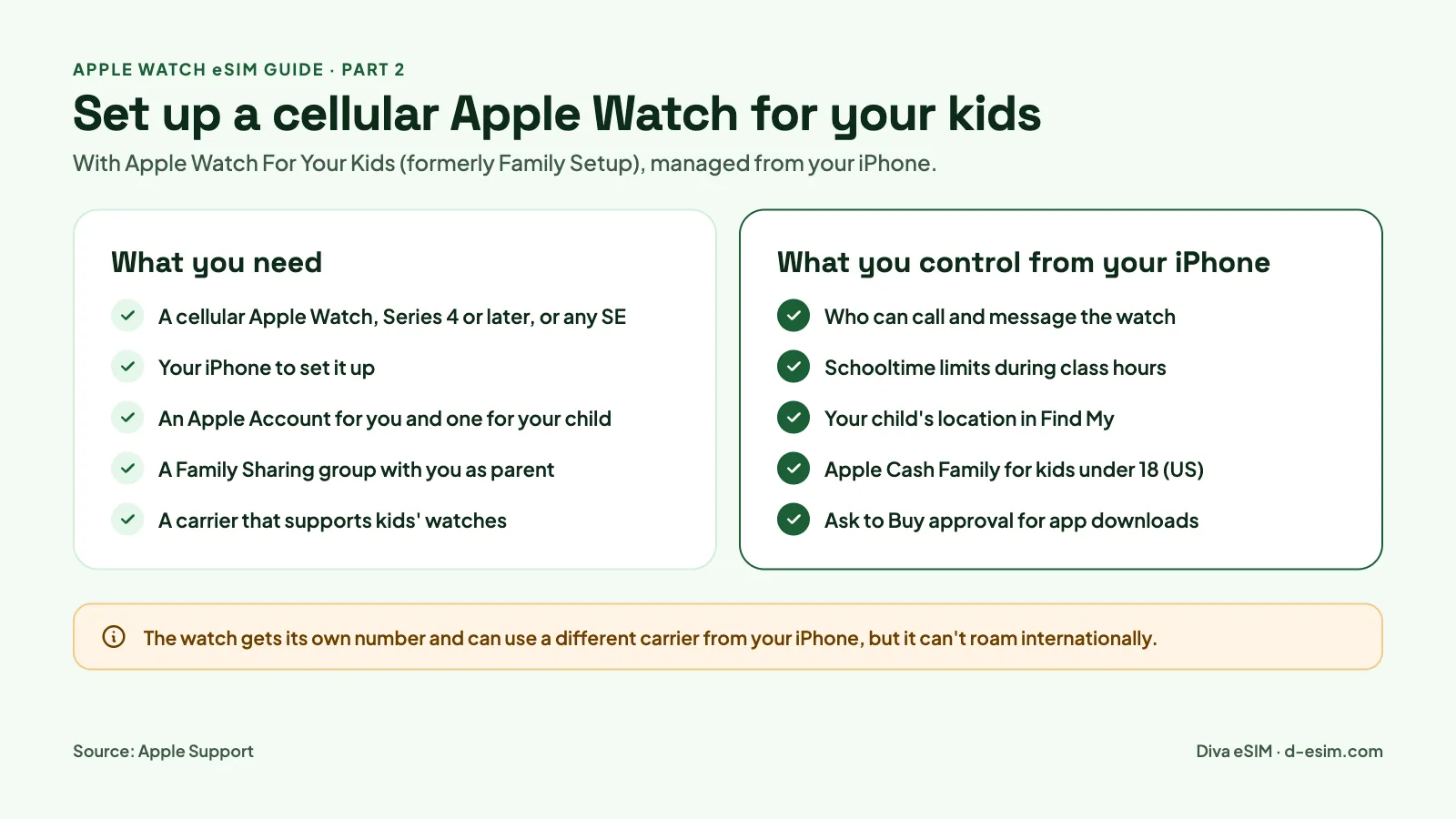
Apple Watch For Your Kids, formerly called Family Setup, lets you set up a cellular Apple Watch for a child or older relative who doesn't have an iPhone. Their watch gets its own phone number and plan, and you manage it from your own iPhone (Apple Support, Set up Apple Watch for a family member).
Apple Watch Family Setup Requirements
- An Apple Watch Series 4 or later, or Apple Watch SE or later, with cellular.
- Your iPhone to set it up. Watches on watchOS 27 need an iPhone 11 or later, or iPhone SE (2nd generation) or later.
- An Apple Account for you, with two-factor authentication on, and one for your family member.
- A Family Sharing group that includes them, with you as organizer or parent/guardian.
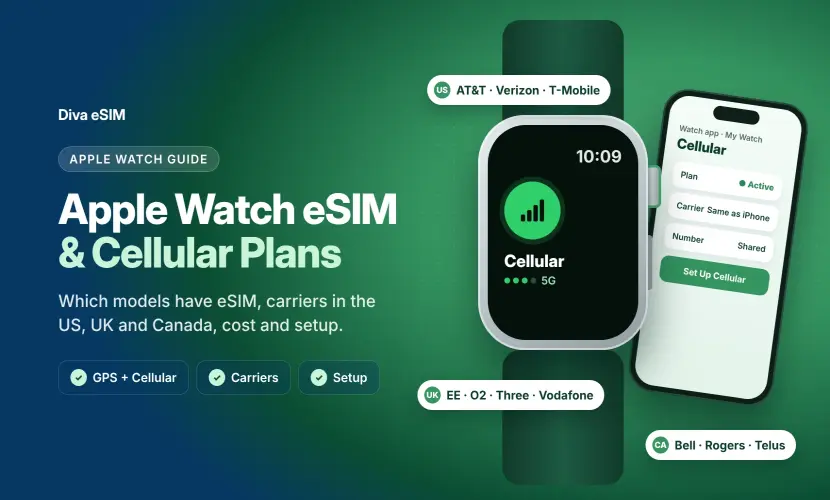
- A carrier that supports kids' watches. In the US, Apple Watch For Your Kids is supported by AT&T, T-Mobile and Verizon, among several other carriers; in the UK by EE; and in Canada by Bell, Rogers and Telus, according to Apple's carrier chart at the time of writing (November 2026). Check the chart for your carrier.
The watch can use a different carrier from your iPhone, which isn't allowed for your own watch. A plan isn't strictly required, but without one the watch only works on Wi-Fi.
How to set it up:
- Erase the watch if it isn't new, then turn it on and hold it near your iPhone.
- Tap Continue, then Set Up for a Family Member, and scan the animation to pair.
- Create a passcode, pick the family member, and choose whether to turn on Ask to Buy.
- At the cellular step, add the watch to your plan. If your carrier doesn't support it, tap Not Now and contact another supported carrier.
- Turn on the features you want, choose shared contacts, and set up Schooltime.
Skipped cellular? Open the Apple Watch app, tap All Watches, select your family member's watch, tap Done, then tap Cellular and Set Up Cellular. To find the watch's phone number, open Settings on the watch and tap Phone.
Managing Family Plans
Everything is handled from the Apple Watch app on the iPhone you used for setup: tap All Watches, then pick the watch under Family Watches.
- Contacts and limits: choose who can call and message the watch, and set restrictions with Screen Time.
- Schooltime: limit the watch to the essentials during school hours.
- Location: see where your child is in Find My.
- Money: Apple Cash Family lets kids under 18 pay with Apple Pay and send money in Messages (US only).
- Purchases: Ask to Buy sends app downloads to you for approval.
A family member's watch is a separate line with its own number, so it gets its own Apple Watch cellular plan without an iPhone of its own, and its own monthly charge. Removing the plan from the watch doesn't always stop billing, so cancel the line with your carrier if you no longer need it.
Some features aren't available on a watch set up with Apple Watch For Your Kids: international roaming, Apple Pay with a credit or debit card, and the ECG, Blood Oxygen, Sleep, Medications and Cycle Tracking features. Fall Detection is available only for users 18 and older (Apple Support).
Using Apple Watch Without Your iPhone: What Works and What Doesn't
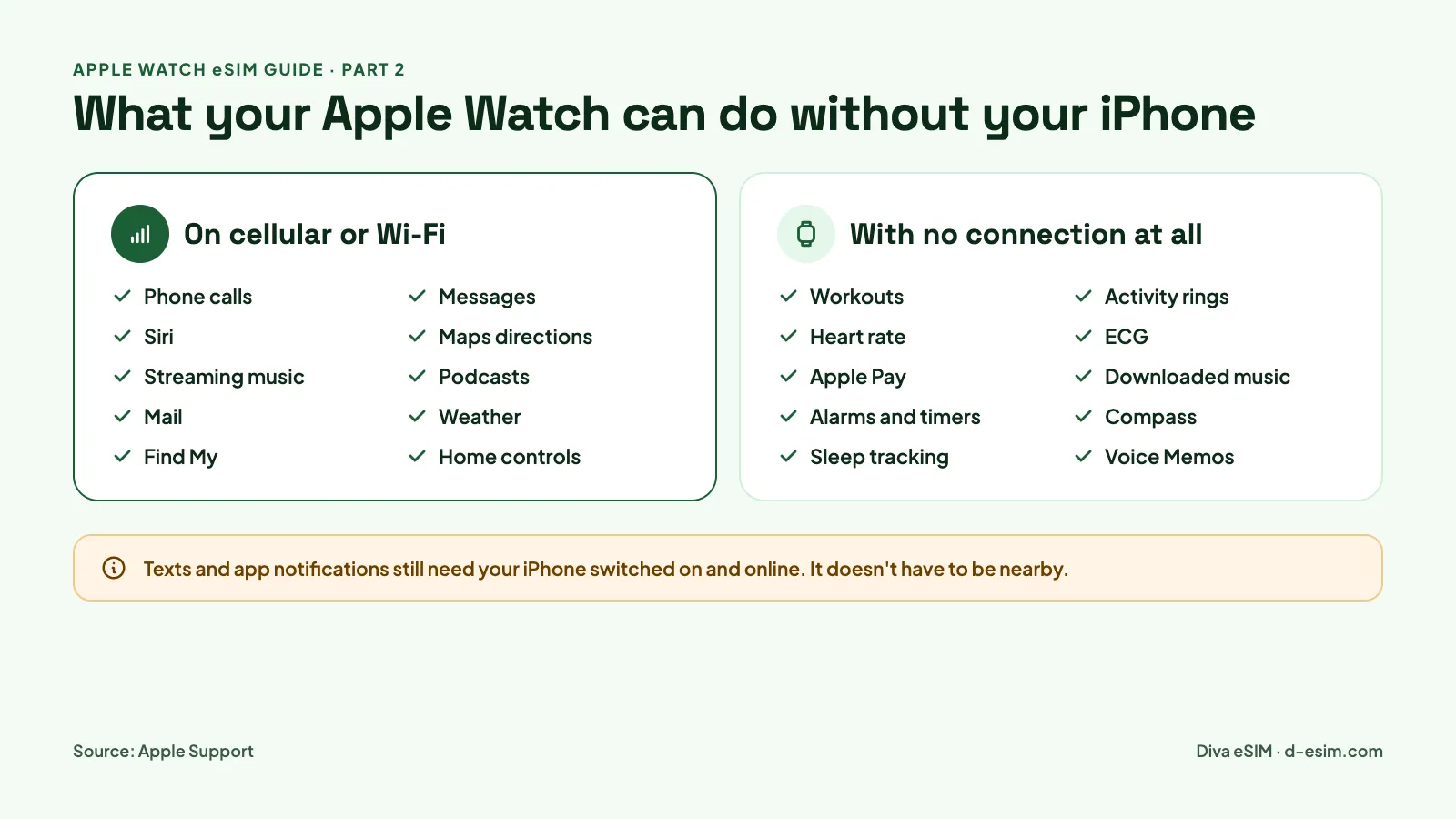
A cellular Apple Watch with an active plan handles most everyday tasks with your iPhone miles away. A GPS-only watch can do much of the same on a known Wi-Fi network, and every Apple Watch keeps working offline for fitness, health and payments (Apple Support).
How to Stay Connected When You're Away From Your Phone
| Your watch's connection | What still works |
|---|---|
| Cellular or Wi-Fi, no iPhone nearby | Phone calls, Messages, Siri, Maps directions, streaming music and podcasts, Mail, Weather, Find My, Home controls, News and Reminders |
| No connection at all | Workouts and Activity rings, heart rate, ECG and Blood Oxygen readings, Apple Pay, downloaded music and podcasts, alarms and timers, Compass, Sleep tracking, Notes and Voice Memos |
A few habits keep the connection reliable:
- Leave cellular switched on. Check that the Cellular button in Control Center is on before you head out without your phone.
- Keep your iPhone powered on and online. SMS, MMS and third-party app notifications reach your cellular watch through your paired iPhone, so it must be on and connected, though it can be anywhere.
- Turn on Wi-Fi Calling for other devices. If your carrier supports it, turn on Wi-Fi Calling and Add Wi-Fi Calling for Other Devices in your iPhone's settings, so the watch can make calls over Wi-Fi when your iPhone isn't nearby.
- Join Wi-Fi networks on your iPhone first. Your watch remembers them and switches to them automatically.
- Download before you go. Save playlists and podcasts to the watch so music keeps playing in a dead zone.
- Watch out for Low Power Mode. When your iPhone isn't nearby, it turns off the watch's cellular and Wi-Fi connections, and incoming calls and notifications are turned off too.
Traveling abroad? Your watch connects differently outside your home country. The travel eSIM and international roaming sections below explain what works.
What You Can't Do Without Your iPhone
- Battery life drops when the watch stays on cellular for long stretches, so charge before a phone-free day.
- An iPhone is still required to set up the watch, activate its eSIM and change plans. Apple Watch isn't supported with Android phones.
- Your watch plan follows your iPhone's carrier, unless the watch was set up for a family member.
- Some third-party apps won't refresh without a connection to your iPhone.
- Regional hardware limits coverage. Cellular Apple Watches come in regional models (Americas, China mainland and Europe/Asia Pacific), and there's no single model that covers every band worldwide.
- Kids' watches can't roam internationally at all.
- It costs extra: each cellular watch is a separate line on your monthly bill.
Can You Install a Travel eSIM Directly on Apple Watch?
No. A regular travel eSIM, the kind you install on a phone with a QR code, can't be installed on Apple Watch, even though the watch has an eSIM. Apple Watch only accepts service from a carrier that supports it, set up through the Apple Watch app and usually tied to your iPhone's number.
That makes "eSIM compatible" and "Apple Watch compatible" two different things. A plan that works perfectly on your iPhone won't give your watch its own connection.
Carrier Watch Plan vs. Travel eSIM on Your iPhone: Which Does What
| Carrier watch plan | Travel eSIM on your iPhone | |
|---|---|---|
| Where you get it | Your carrier, through the Apple Watch app | QR code, app or manual details |
| Installs on Apple Watch | Yes | No |
| Installs on iPhone | No | Yes |
| Phone number | Shares your iPhone's number | Usually data only, no number |
| Cost | About $10 to $15 a month in the US, ongoing | One prepaid payment per trip |
| Works abroad | Only if your carrier supports watch roaming | In every country the plan covers |
How Diva eSIM Works with Apple Watch
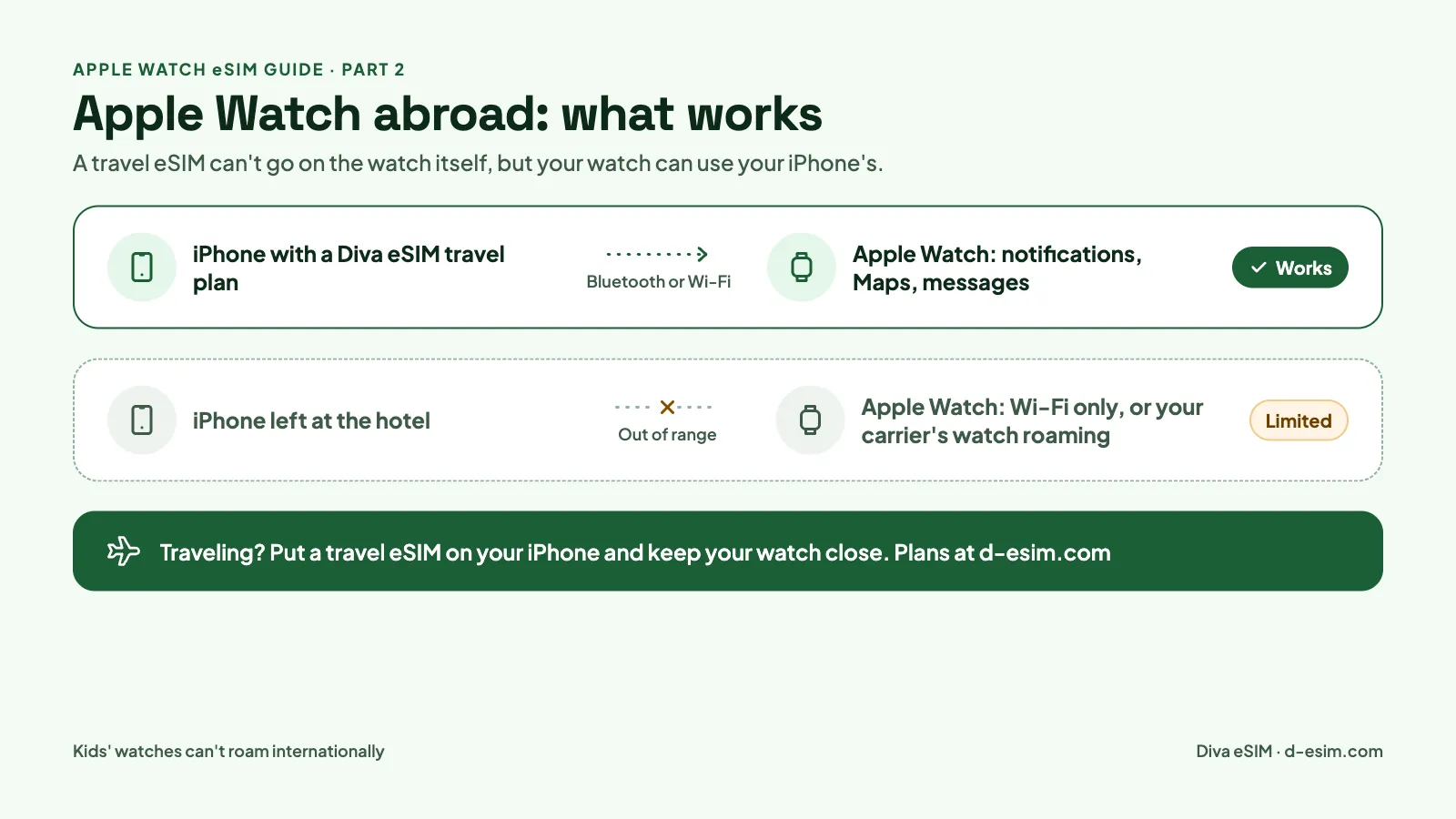
Diva eSIM doesn't sell Apple Watch plans, and a Diva eSIM can't be installed on the watch itself. Instead, you install a Diva eSIM on your iPhone, and your Apple Watch can use the iPhone's connection while the two are connected over Bluetooth or the same Wi-Fi network.
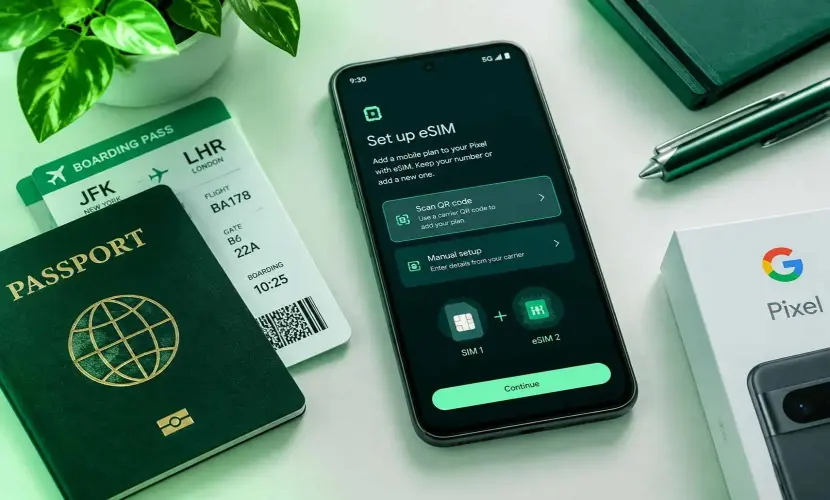
Say you're flying from the US to Europe. Before you leave, install a Diva eSIM Europe plan on your iPhone, then switch your iPhone's cellular data to it when you land. Notifications, messages, Maps, Siri and weather keep working on your wrist, without paying your home carrier's roaming rates for data. The same works for Japan, Turkey or any other destination.
The limit is distance. A Diva eSIM plan is a smartphone data plan, not an Apple Watch cellular plan, so if you leave your iPhone at the hotel, your watch only works on Wi-Fi or through your carrier's watch roaming. Not sure your iPhone supports eSIM? Check it on the Diva eSIM compatibility page first.
Apple Watch International Roaming: What Works Abroad
Your watch's own cellular plan can roam abroad only when Apple's conditions are all met: a cellular Apple Watch Series 5 or later, any SE or any Ultra, running watchOS 9.1 or later, and a carrier that adds the watch to your iPhone's roaming plan and supports VoLTE roaming in your destination (Apple Support, Set up cellular on Apple Watch).
Carrier support is the part that trips people up. Apple's US carrier chart currently marks only AT&T and Cricket Wireless for Apple Watch international roaming, and no UK or Canadian carrier is marked. A carrier that roams on iPhone doesn't necessarily roam on the watch.
Direct watch roaming is separate from the connection your watch gets through your iPhone. If your watch's own plan doesn't roam, it still connects through your paired iPhone over Bluetooth or Wi-Fi while the iPhone is with you, so a travel eSIM on the iPhone keeps the watch online. With the iPhone out of range, the watch only has Wi-Fi.
How to Enable International Roaming on Apple Watch
- Ask your carrier whether your watch plan includes international roaming and whether your destination is covered.
- Ask them to add your watch to your iPhone's roaming plan, and check the daily or per-use charges.
- On your Apple Watch, open Settings, tap Cellular, then turn on Data Roaming.
Two hardware limits apply wherever you go. Cellular Apple Watches are made in regional versions, and there's no worldwide model, so a US watch may not connect to every network abroad. Watches set up with Apple Watch For Your Kids can't roam at all.
Best Connectivity Options When Traveling
| Your situation | Best option |
|---|---|
| You'll carry your iPhone everywhere | A Diva eSIM travel plan on your iPhone; your watch uses its connection |
| You want to leave your iPhone behind abroad | Your carrier's Apple Watch roaming, after checking it's supported and what it costs |
| You're visiting several countries | A regional Diva eSIM plan for your iPhone, and confirm watch roaming covers each country |
| You have a GPS-only Apple Watch | A travel eSIM on your iPhone, plus Wi-Fi at your hotel |
| Your child has a kids' Apple Watch | Wi-Fi only abroad, since kids' watches can't roam |
Frequently Asked Questions
Not directly. Apple Watch only accepts plans from carriers that support it through the Apple Watch app. The workaround is to install a travel eSIM on your iPhone: your watch can use the iPhone's connection while the two are connected over Bluetooth or Wi-Fi.
Comments (0)
Leave a comment